

Knowing how to share your location Android iOS 2026 comes down to which app you are using, who you are sharing with, and how long you want the share to last. The good news is that the technical barriers between Apple and Android that once made cross-platform sharing complicated have largely been dismantled: Google Maps works identically on both operating systems and is the most reliable cross-platform option, while Apple’s Find My and Android’s Find Hub handle same-ecosystem sharing with minimal setup. This guide covers every major method on both platforms, including Google Maps, Apple Find My, iPhone Messages, Android Find Hub, WhatsApp, Snapchat, and Life360, with step-by-step instructions for each.
Method 1: Share Your Location on Google Maps (Android and iPhone, Cross-Platform)
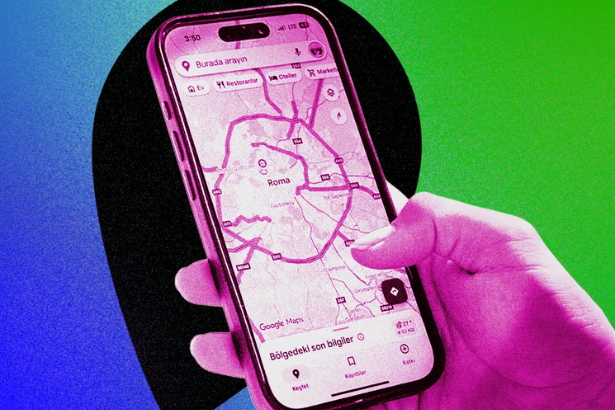
Google Maps is the single best option for sharing your location across platforms because it works identically on Android and iOS and does not require both people to use the same brand of phone.
Requirements: Google Maps installed on both devices (free from the App Store or Google Play Store), a Google account, and location services enabled on your device.
Steps for Android:
Open Google Maps on your Android device. Tap your profile picture icon at the top right of the screen and select Location Sharing. Tap the blue Share Location button. Choose how long you want to share: options include For 1 hour, For 2 hours, For 4 hours, For 8 hours, For 24 hours, or Until you turn this off for indefinite sharing. Select a contact from your list or tap More to see your full contact list. Tap Share. The recipient receives a Google Maps link and can see your live location in their own Google Maps app or through the Google Find Hub web dashboard at g.co/findmykids.
Steps for iPhone:
Open the Google Maps app on your iPhone. Tap the blue dot that shows your current location on the map. Tap Share location from the panel that appears. Choose your sharing duration, including the Until you turn this off option for indefinite sharing. Select a contact to share with. For indefinite sharing, use an email address rather than a phone number, as phone number shares are valid for only 24 hours. Tap Share.
To stop sharing on Google Maps: Open the app, tap your profile picture, select Location Sharing, tap the person you are sharing with, and tap Stop.
Method 2: Share Your Location on iPhone via Apple Find My
Apple’s Find My is the built-in iPhone solution for sharing your location with other Apple users. It is deeply integrated into the iPhone experience but is limited to Apple-to-Apple sharing and does not work with Android.
Requirements: iPhone running iOS 13 or later, iCloud account with Find My enabled, both sender and recipient on Apple devices.
Steps:
Open the Find My app on your iPhone. Tap the People tab at the bottom of the screen. Tap the plus icon and select Share My Location. Choose a contact from your list or type a name, phone number, or email address. Tap Send. Choose how long to share: Share for One Hour, Share Until End of Day, or Share Indefinitely. The recipient receives a notification and must accept to see your location.
To stop sharing via Find My: Open the Find My app, tap the People tab, select the person you are sharing with, scroll down, and tap Stop Sharing My Location.
Find My works across iPhone, iPad, Mac, and Apple Watch. It does not work with Android. For sharing with Android users, use Google Maps or one of the cross-platform methods below.
Method 3: Share Your Location via iPhone Messages
If you and the person you want to share with are both iPhone users, you can share your location directly through the Messages app without opening a separate application.
Steps:
Open the Messages app and open a conversation with the person you want to share with. Tap the name or phone number at the top of the conversation screen to open the contact information panel. Tap the info icon if the name bar does not open immediately. Tap Share My Location. Choose Share for One Hour, Share Until End of Day, or Share Indefinitely. The recipient sees your location pinned on a small map within the Messages conversation and can open it in Apple Maps.
To stop sharing via Messages: Open the conversation, tap the contact name at the top, and tap Stop Sharing My Location.
Method 4: Share Your Location via Android Google Find Hub
Google Find Hub is Android’s native people-finding and location sharing system, introduced with Android 14 and available on all modern Android devices. It integrates with Google Maps and allows real-time sharing with any Google account user.
Steps:
Open the Find Hub app on your Android device. Switch to the People tab. Tap New Share or the plus button. Choose how long you want to share your location from the available duration options. Select a Google account contact to share with, or generate a shareable link. The recipient can view your location in their Google Maps app or the Find Hub web version. The web version allows viewing but not sharing location.
Note: The recipient does not need to have an Android device. Any device with Google Maps and a Google account can receive the share.
Method 5: Share Your Location on WhatsApp (Android and iPhone, Cross-Platform)
WhatsApp’s Live Location feature works on both Android and iPhone and is a convenient option for sharing your location in an ongoing conversation without leaving the app.
Steps on iPhone or Android:
Open WhatsApp and navigate to the chat or group where you want to share your location. Tap the plus icon beside the text field to open the attachment menu. Tap Location. Select Share Live Location. Choose a sharing duration: 15 minutes, 1 hour, or 8 hours. WhatsApp does not offer indefinite sharing. Add an optional comment if desired and tap the send button. The recipient sees your live location updating in real time within the chat.
To stop sharing: Go to the chat where you are sharing, tap the live location message, and tap Stop Sharing.
WhatsApp live location sharing is capped at 8 hours per session. For indefinite sharing, use Google Maps or Life360 instead.
Method 6: Share Your Location on Snapchat (Snap Map)
Snapchat’s Snap Map feature provides location sharing within the app’s social context. It is primarily designed for friends within your Snapchat network rather than one-time location sends.
Steps to share on Snap Map:
Open Snapchat on your Android or iPhone and pinch the camera screen to open the Snap Map. Tap the settings gear icon in the top right. Under Who Can See My Location, choose My Friends, Select Friends, or Only These Friends depending on your preference. Tap Save.
To stop sharing on Snapchat: Activate Ghost Mode in the Snap Map settings. While in Ghost Mode, your location is hidden from all contacts.
Snapchat’s location sharing is continuous when active, based on your Friends setting, rather than a timed one-time share. The privacy implications of this differ from the point-in-time share that Google Maps or Messages provide.
Method 7: Life360 for Ongoing Family Location Sharing (Android and iPhone, Cross-Platform)
Life360 is a dedicated family location sharing app that works on both Android and iPhone and is the strongest option for ongoing multi-person monitoring, particularly for families tracking children or organizing group travel.
Setup steps:
Download Life360 from the App Store or Google Play Store on all participating devices. Create an account and log in. Tap the plus icon to create a Circle, which is the name for a location sharing group. Invite family members or contacts to join your Circle via phone number or email. Once they accept, everyone’s real-time location is visible on the shared map within the app. Life360 also provides place alerts, driving reports, and SOS signal features beyond basic location sharing.
Life360 keeps 30 days of past location history for each person in a Circle, which differentiates it from Google Maps location sharing, which shows only the current real-time location without history.
Privacy Considerations: What You Should Know Before Sharing
Every location sharing method described in this guide requires the explicit consent of the person sharing their location. None of these methods allow covert tracking.
Google Maps only allows you to share your location if you choose to do so. You cannot track someone on Google Maps without their knowledge or consent on both Android and iOS devices. The same consent requirement applies to Find My, Find Hub, WhatsApp, Snapchat, and Life360. All of these services require the sharing party to actively initiate the share and, in most cases, require the receiving party to accept or acknowledge it.
When sharing your location, choose the shortest duration that meets your need. For meeting a friend at a venue, a 1-hour Google Maps share is sufficient and stops automatically. For checking in during travel, Share Until End of Day in Find My or Messages provides a day-long window without requiring manual action. For family safety monitoring, Life360 or indefinite Google Maps sharing with a trusted contact is the appropriate structure.
Latest Update: Google Find Hub and the 2026 Cross-Platform Improvement
The how to share your location Android iOS 2026 landscape has been meaningfully improved by Google’s integration of Find Hub with Google Maps in 2026.
The Find Hub update means that Android users who share their location with an iPhone user via Google Maps can now be tracked not just in the Google Maps app but also through the Google Find Hub web interface at g.co/findmykids. This provides a browser-based option for people who do not want to open the mobile app to check a location, and it makes the Google Maps share more versatile for families managing multiple devices across multiple platforms.
For full platform documentation, follow WIRED, Google Maps Support, and Apple Support.
Broader Implications: Location Sharing in a Privacy-Aware World
The how to share your location Android iOS 2026 question is more nuanced than it appears because the technology for sharing has outpaced most people’s understanding of what they are agreeing to when they tap Share.
Every method described in this guide gives the recipient the ability to see your real-time location at any point during the active share window. Google Maps indefinite shares remain active until you manually turn them off. Life360 operates continuously. Snap Map shares location with your Friends list as long as Ghost Mode is disabled. The convenience of these tools is real, but so is the privacy commitment they involve.
The clearest guidance is this: use the shortest duration that meets your actual need, verify that you know exactly who can see your location, and regularly audit your active location shares in each app you use. In Google Maps, that audit lives under your profile picture and Location Sharing. In Find My, it lives under the People tab. In Life360, it is the Circle member list. In WhatsApp, it is the active live location message in each chat.
For more consumer tech guides and how-to coverage, visit The Tech Marketer.
What Happens Next
All of the methods in this guide are functional on current versions of iOS 18 and Android 15 as of July 2026. Google Maps, Find My, and WhatsApp receive regular updates that may change menu placement but not core functionality. Life360 updates its app interface periodically but the Circle sharing model remains consistent. Users on older operating systems should update to the most recent iOS or Android version to ensure full compatibility with location sharing features.
FAQ
How do I share my location from iPhone to Android in 2026?
The best method for sharing your location from iPhone to Android in 2026 is Google Maps. Open Google Maps on your iPhone, tap the blue dot showing your current location, tap Share Location, choose your sharing duration including Until You Turn This Off for indefinite sharing, and select your Android contact. They will receive a link and can view your live location in Google Maps on their device. Apple’s Find My does not work with Android.
How do I share my location on Android with an iPhone user?
Open Google Maps on your Android device, tap your profile picture, select Location Sharing, tap Share Location, choose a duration, and select the iPhone user’s contact. For the share to persist, use their email address rather than their phone number. You can also use Google Find Hub by opening the app, tapping the People tab, tapping New Share, choosing a duration, and selecting a contact.
How do I share my location indefinitely on iPhone?
In Google Maps on iPhone, tap your location dot, tap Share Location, and select Until You Turn This Off. In Apple Find My, tap the People tab, add a contact, and select Share Indefinitely. In iPhone Messages, open a conversation, tap the contact name at the top, tap Share My Location, and select Share Indefinitely. All three options remain active until you manually turn them off.
How do I stop sharing my location on Android or iPhone?
In Google Maps on either platform, tap your profile picture, select Location Sharing, and tap Stop next to the person you are sharing with. In Apple Find My, tap People, select the contact, and tap Stop Sharing My Location. In WhatsApp, go to the active live location message in the chat and tap Stop Sharing. In Life360, you would need to leave the Circle or adjust your sharing settings within the app.
What is the best app for sharing location between iPhone and Android?
Google Maps is the most universally recommended option for cross-platform location sharing between iPhone and Android because it works identically on both operating systems, requires only a Google account, supports both timed and indefinite sharing, and integrates with the Google Find Hub web interface. Life360 is the best option for ongoing family location monitoring with history and alerts. WhatsApp is the most convenient option if you are already in an active WhatsApp conversation.
Sources and References
- WIRED (original submission, blocked): https://www.wired.com/story/how-to-share-your-location-android-ios/